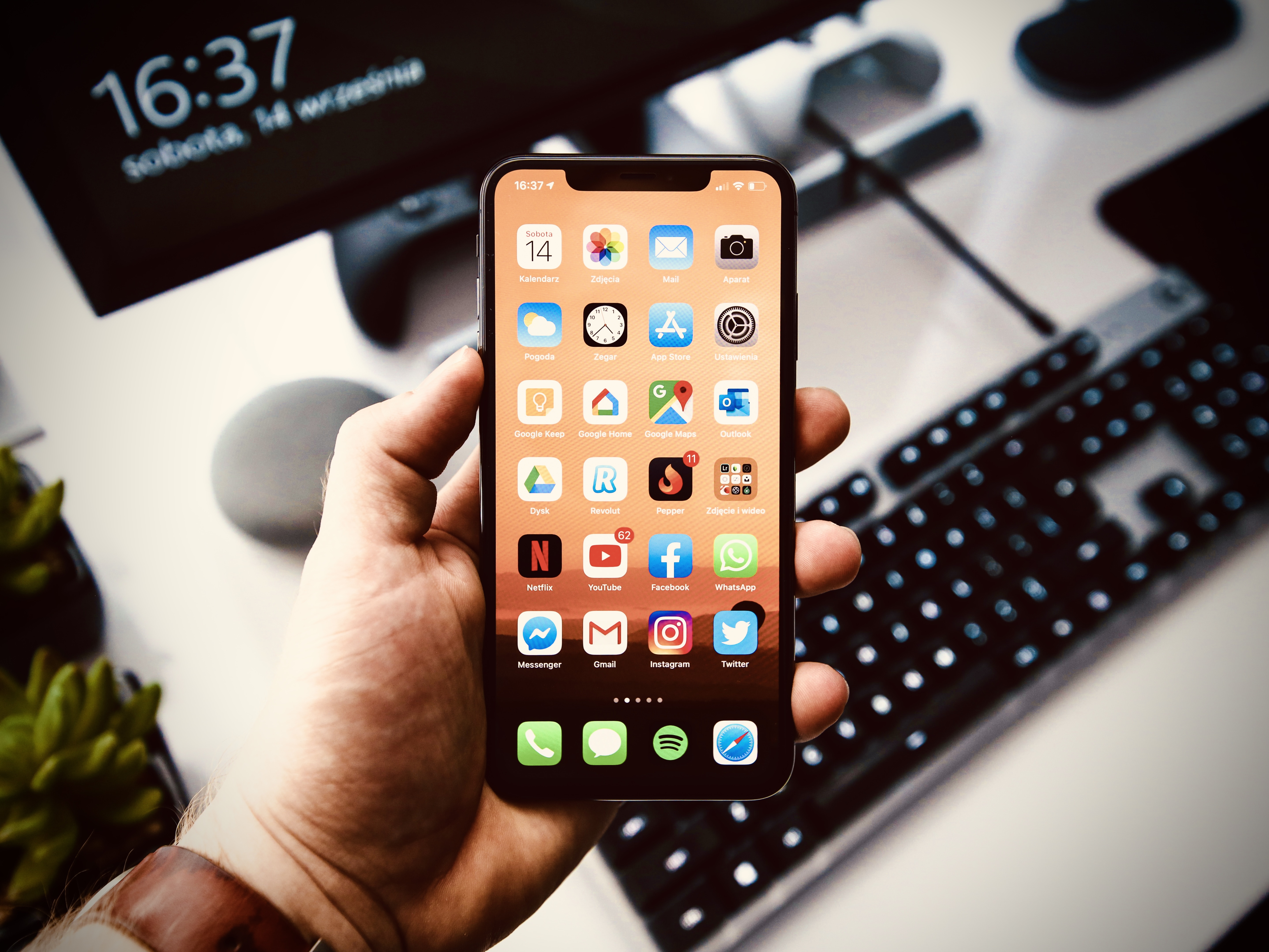
These days, the ability to capture and share your iPhone screen has become an essential skill. Whether you’re a content creator, educator, or simply want to demonstrate an app’s features to a friend, knowing how to screen record on your iPhone can be incredibly valuable. In this guide, we will walk you through the step-by-step process of screen recording on an iPhone.
Add screen recording to your iphone’s control center
Before you can screen record on your iPhone for the first time, you will need to enable that feature. To do this, go to Settings, scroll down to Control Center, then tap the Add (green plus) button next to Screen Recording.
How to record your iPhone screen
Now that you’ve added that to control center, you’re ready to learn how to make a screen recording on your iPhone.
- Start by swiping down from the top left corner of your screen to open Control Center on your iPhone.
- Next, tap the gray Record button. Once the the three-second countdown ends, your screen is being recorded. Notice that the Record button is now red.
- Exit the Control Center to record your screen.
- To stop recording, open Control Center again, then tap the red Record button or tap the red status bar at the top left of your screen and tap Stop. Once you’ve stopped the recording, you will receive a notification along the top of the screen that states:
- Go to the Photos app and select your screen recording. From the Photos app, your screen recording can be shared and edited.
Trim the video
Conclusion
To cut off the beginning or end of the captured screen recording, open the video, tap “Edit,” then use the trim tool to remove any unnecessary portions.
Whether you’re a tech enthusiast, educator, or entrepreneur, the ability to capture and share your iPhone screen empowers you to connect with your audience in dynamic and engaging ways. So, go ahead and start exploring the world of screen recording – your digital canvas awaits!
Visit our website for more useful iPhone tips.