
Apple’s Safari browser is a powerful tool that comes pre-installed on every iPhone, providing users with a seamless web browsing experience. One of its lesser-known yet incredibly useful features is the ability to download files directly from the internet. Whether it’s a PDF document, a music track, a video, or even an app, Safari empowers users to access and store a wide range of content. In this guide, we will explore how to make the most of Safari downloads on your iPhone and manage your files efficiently.
Enabling Downloads in Safari:
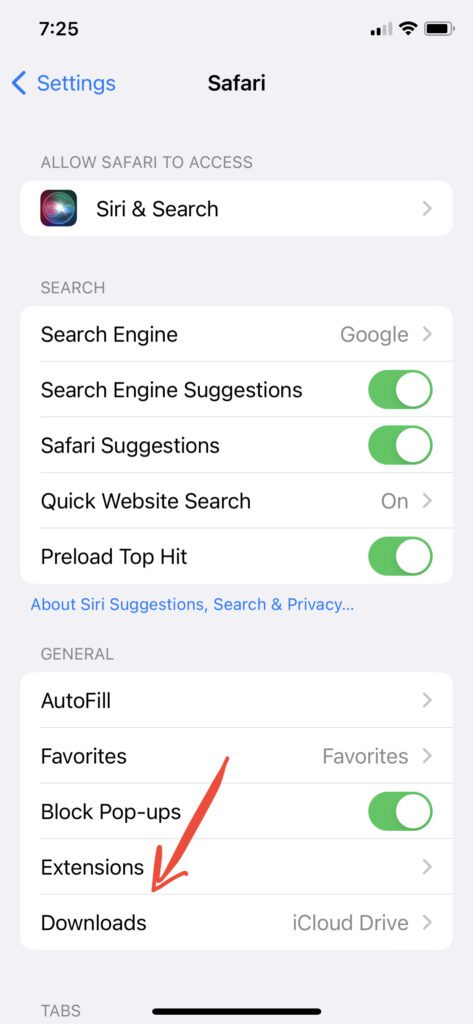
Before you can start downloading files on Safari, ensure that the download feature is enabled. To do this, go to “Settings” on your iPhone, scroll down and tap on “Safari,” then look for the “Downloads” section. Here, you can choose your preferred download location, such as iCloud Drive or other cloud storage services, or keep it in the default location on your iPhone.
Downloading Files in Safari:
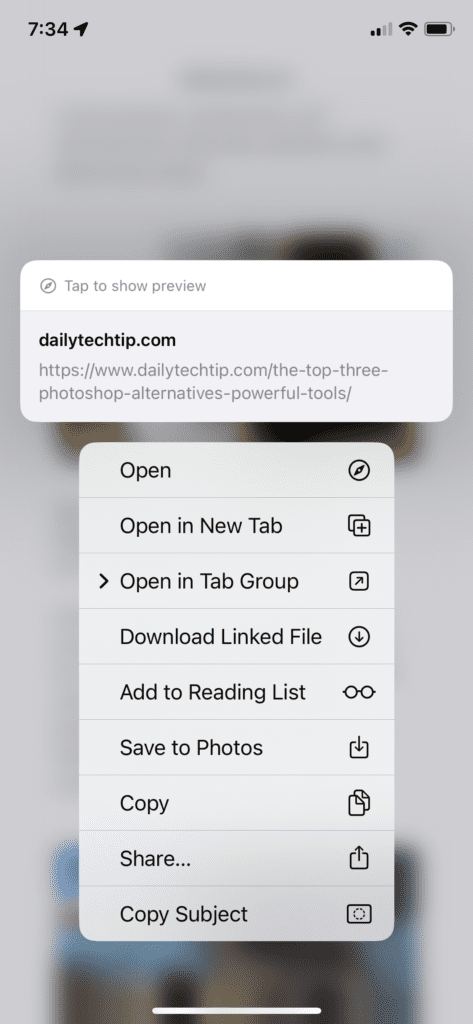
Downloading files using Safari on your iPhone is a straightforward process. When you encounter a link to a downloadable file on a website, simply tap and hold the link until a menu appears. From the menu, select “Download Linked File,” and Safari will initiate the download process. The downloaded file will be saved to the location you specified in the “Downloads” settings.
Managing Downloads:
To access and manage your downloaded files, tap the Safari app and look for the download icon, which resembles an arrow pointing down. This icon is usually located in the top right corner of the Safari window. Upon tapping the download icon, you will be taken to the “Downloads” page, displaying a list of your downloaded files.

Opening and Sharing Downloads:
From the “Downloads” page, you can tap on any file to open it directly in Safari or its associated app. For instance, PDFs will open in the built-in PDF viewer, while music tracks or videos may open in the respective media player app. Additionally, you can share your downloaded files with other apps or people. Tap and hold a file, then select “Share” to choose from various sharing options, such as sending it via Messages or saving it to another app like Notes or Files.
To keep your downloads organized, consider periodically cleaning up the list of downloaded files. You can delete individual files by swiping left on them and selecting “Delete,” or you can clear all downloads by tapping “Clear All.” If you use a cloud storage service as your download location, moving files to appropriate folders within the cloud storage can further enhance organization.
Managing Downloaded Files:
To keep your downloads organized, consider periodically cleaning up the list of downloaded files. You can delete individual files by swiping left on them and selecting “Delete,” or you can clear all downloads by tapping “Clear All.” If you use a cloud storage service as your download location, moving files to appropriate folders within the cloud storage can further enhance organization.
Conclusion:
Safari’s download feature on the iPhone is a valuable tool for accessing and storing various files from the internet. From PDFs and music tracks to videos and more, Safari empowers users to keep their favorite content close at hand. By enabling downloads in Safari’s settings and mastering the management of downloaded files, you can make the most of this powerful feature and optimize your web browsing experience on your iPhone. Happy downloading!
For more iPhone tips, gadget reviews, and tech news, visit dailytechtip.com.